Data under Windows can be protected with Microsoft’s BitLocker encryption technology. But in many cases the Bitlocker key ends up automatically with Microsoft.
Not all encryption is the same, and this is extremely important to know to protect your data. Example: Microsoft Anyone who uses a Microsoft account and encrypts their SSD with the in-house technology BitLocker often places the recovery key automatically online at Microsoft.
But Microsoft now has confirmed that these keys are released to investigative authorities on a court order so that they can view encrypted notebooks.
According to Microsoft, the company will achieve around 20 requests per year from law enforcement agencies which relate to BitLocker keys. How to protect your data.
Microsoft has keys to your data
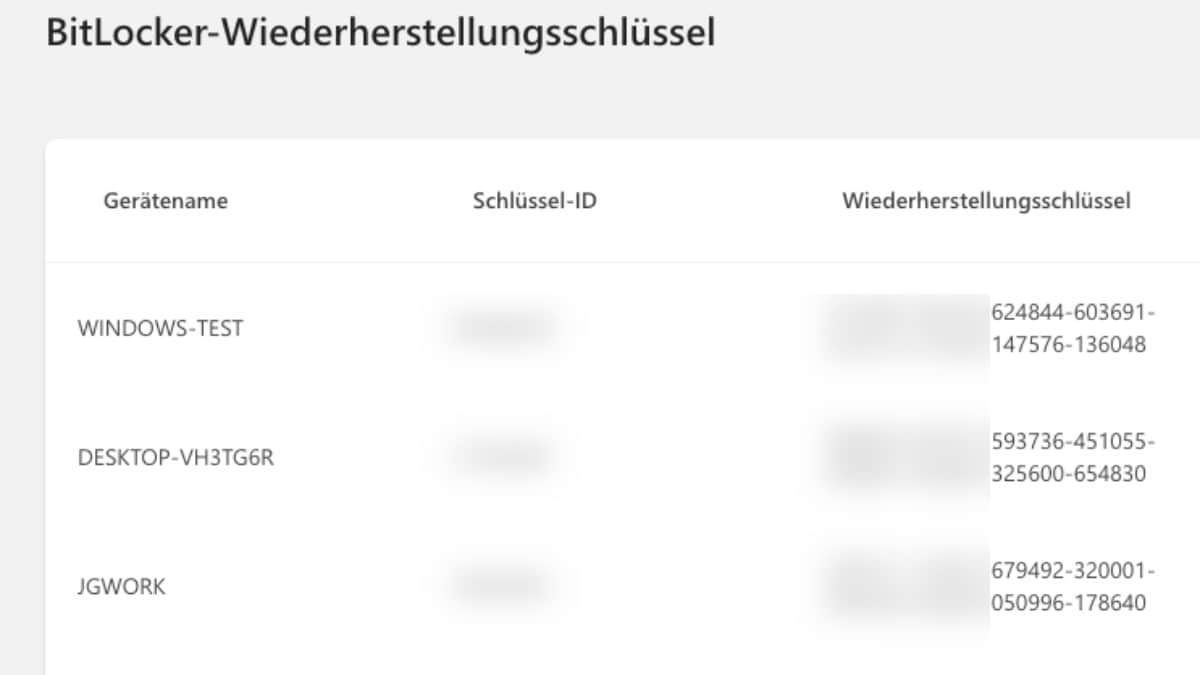
BitLocker is active by default on many Windows devices. During setup, users are often asked to save the recovery key in their Microsoft account, for example, in case they forget their password or change hardware.
In the Home edition of Windows, the so-called ‘device encryption’ is usually activated automatically, where the recovery keys end up in the Microsoft account by default.
There’s no denying that this comes in handy in some cases. What is important, however, is that these keys stored in the cloud are not end-to-end encrypted. Microsoft itself can access it and is legally able to pass it on to authorities.
With increasing pressure for users to use a Microsoft account instead of a local account, this practice is a worrying development for the protection of their own data.
How to protect your data
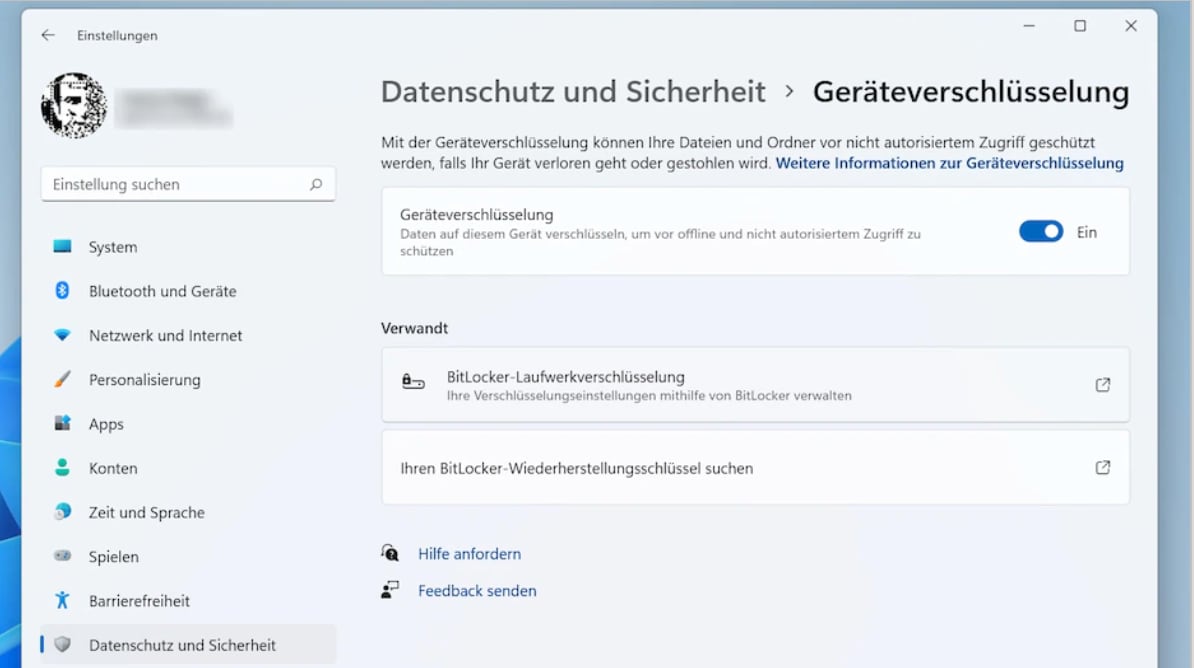
One can assume that there is some substance behind a judicial decision. Nevertheless, the following applies to data protection: Encryption defeats its purpose if third parties have access to the keys.
If you want to prevent third parties from accessing Bitlocker keys via cloud services, you should take action yourself:
- Do not save the recovery key in the Microsoft account
- Instead, save the key offline, for example in a password manager
- Check below account.microsoft.com/devices/recoverykey Check whether keys are stored there and remove them if necessary
- If you want to avoid Bitlocker, you can also use alternative tools such as VeraCrypt insert
About the Author