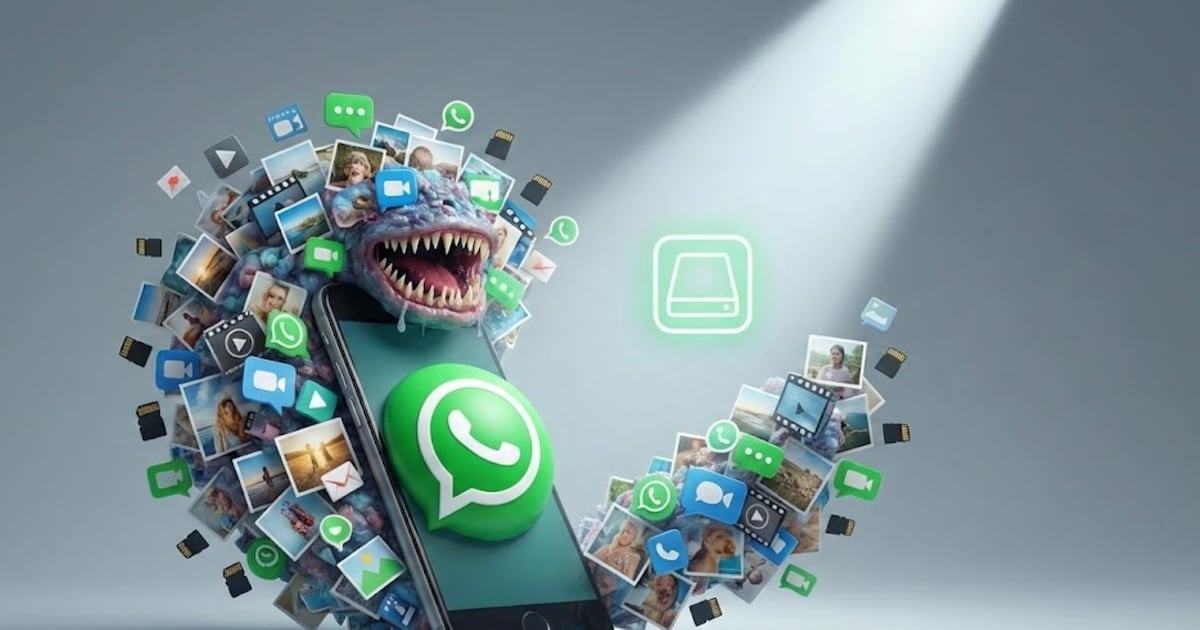
For many users, WhatsApp is the most important messenger – but also one of the biggest hidden memory hogs on the smartphone. How to get the storage space back.
Often unnoticed, photos, videos, voice messages and GIFs accumulate in the background and quickly take up several gigabytes of storage space. This can be a problem especially if there is little free memory on the smartphone anyway.
What many people don’t know: WhatsApp not only saves media in the chat, but often directly in the smartphone’s photo gallery. This is exactly where you can save a lot of storage space with a simple setting without losing important content.

iPhone: Instantly get more storage space with just one setting
On iOS devices, the function for automatically exporting media to the gallery can be completely deactivated. This means that photos and videos are only saved in the WhatsApp chat and do not take up double storage space.
- Open WhatsApp
- Go to Settings
- Click here on “Chats”
- Uncheck Save to Photos.
From this moment on, received images and videos will no longer be automatically saved to your iPhone’s photo library. Only content that you record yourself and actively send will end up in the recordings. This prevents double memory usage and often saves several gigabytes.
How to get even more iPhone storage back
Somewhat hidden, WhatsApp also offers integrated storage management (Settings / Storage and data / Storage management). Here you can specifically delete individual forwarded files and media from individual chats.
If you want to focus on large files in order to get a lot of storage space back quickly, it’s worth taking a look at the “Larger than 5 MB” overview. Here you can quickly identify memory hogs, such as videos sent that can quickly take up more than 100 MB.

Android: Clean up gallery
Technically, automatic saving cannot be completely deactivated on Android. But you can prevent WhatsApp media from “cluttering up” your gallery.
- Open WhatsApp on your smartphone
- Now open the settings here
- In the “Chats” tab you will find the item “Visibility of media”
- Here you can now disable “Show newly downloaded media in your phone’s gallery”.
Afterwards, WhatsApp photos and videos will no longer be displayed in the gallery, but will only remain visible in the app.
Important: On Android it’s often just shortcuts. If an image is deleted from the gallery, it will also disappear from the chat. On iOS, however, real copies are created – the chat medium remains there even if you delete it from the Photos app.
Clear cache on Android
To quickly free up a lot of storage space on your smartphone on Android, emptying the app cache is a good method. Android cell phones store temporary data there such as thumbnails, profile pictures and leftover media that have already been viewed, which over time takes up an unnecessary amount of memory.
This is how it works on most Android devices: Open the device settings and select the “Apps” menu item (or “Apps & Notifications”). Here select WhatsApp from the list. Then tap “Clear cache” under “Storage & Cache”. The cache is deleted after a few seconds.
About the Author