[ad_1]
Android: Delete or reset advertising ID
On Android, Google offers the option of either completely deleting the advertising ID or resetting it regularly. Here’s how it works:
- Open Settings
- Navigate to “Google”.
- Select “All Services” “Advertising” “Delete Advertising ID”.
If you accept personalized advertising but do not want a detailed user profile to be created in the long term, you can regularly generate a new ID instead. This means that the system starts with a fresh profile and data that has already been collected loses its direct relevance.
iOS: Prevent tracking
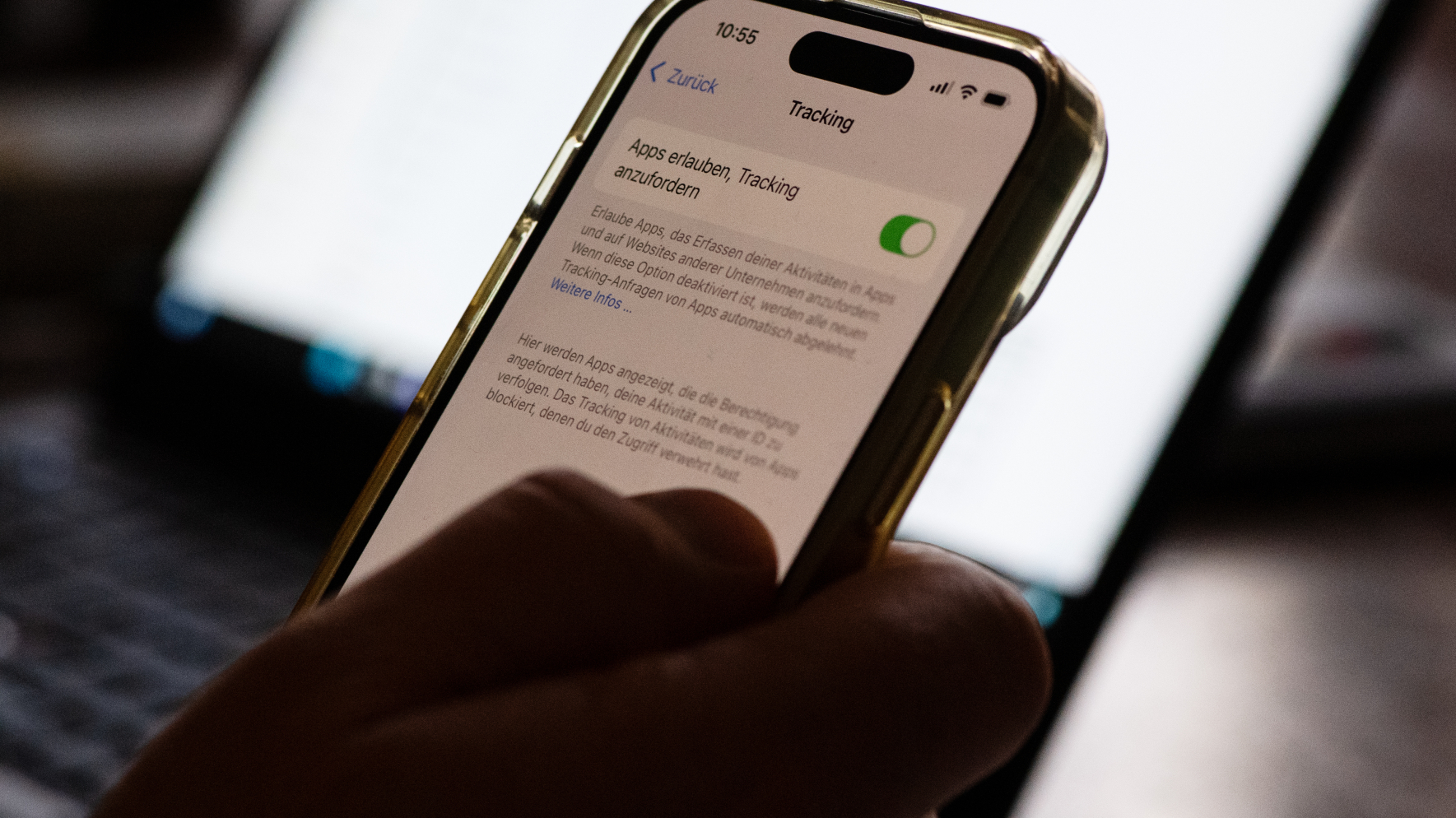
Apple takes a slightly different approach. Since iOS 14.5, apps have to explicitly ask for permission to track users. If you want to turn off the Identifier for Advertisers (IDFA) completely, you can do so in the settings under “Tracking”.
Toggle the slider under “Allow apps to request tracking” to the left. Now the IDFA or AdID can no longer be used by advertising providers.
Important: Also keep an eye on your location and other identifiers
Advertising IDs aren’t the only way apps identify users. Many providers use additional methods such as
- Own app IDs
- Device information (model, operating system, installed apps)
- Location data
If you want to leave as few traces as possible, you should deactivate location sharing by default and only activate it when it is really needed. Particularly important: Many apps require location access even though they don’t need it to function. You can control which apps are allowed to access your location in Settings.
[ad_2]
About the Author